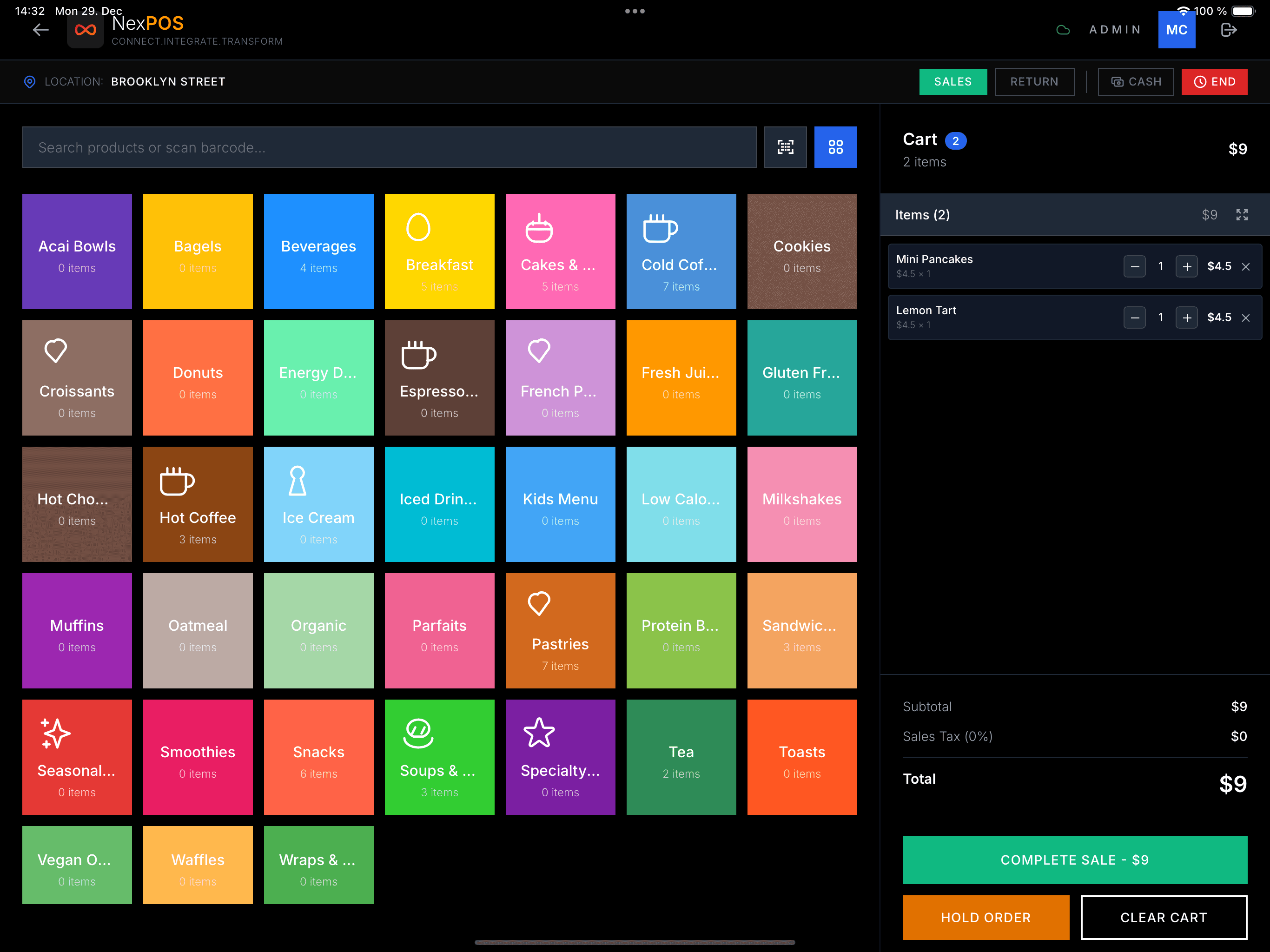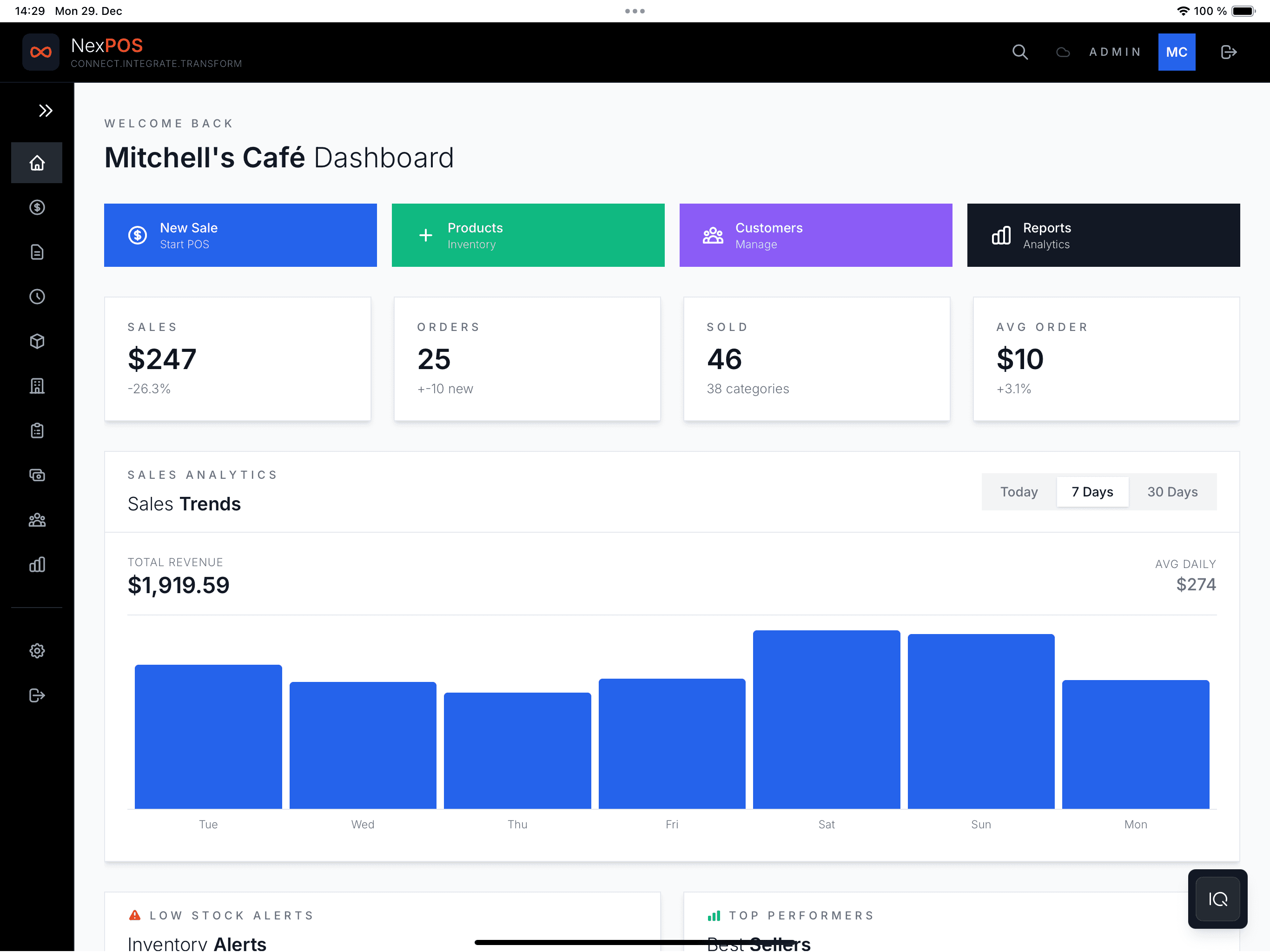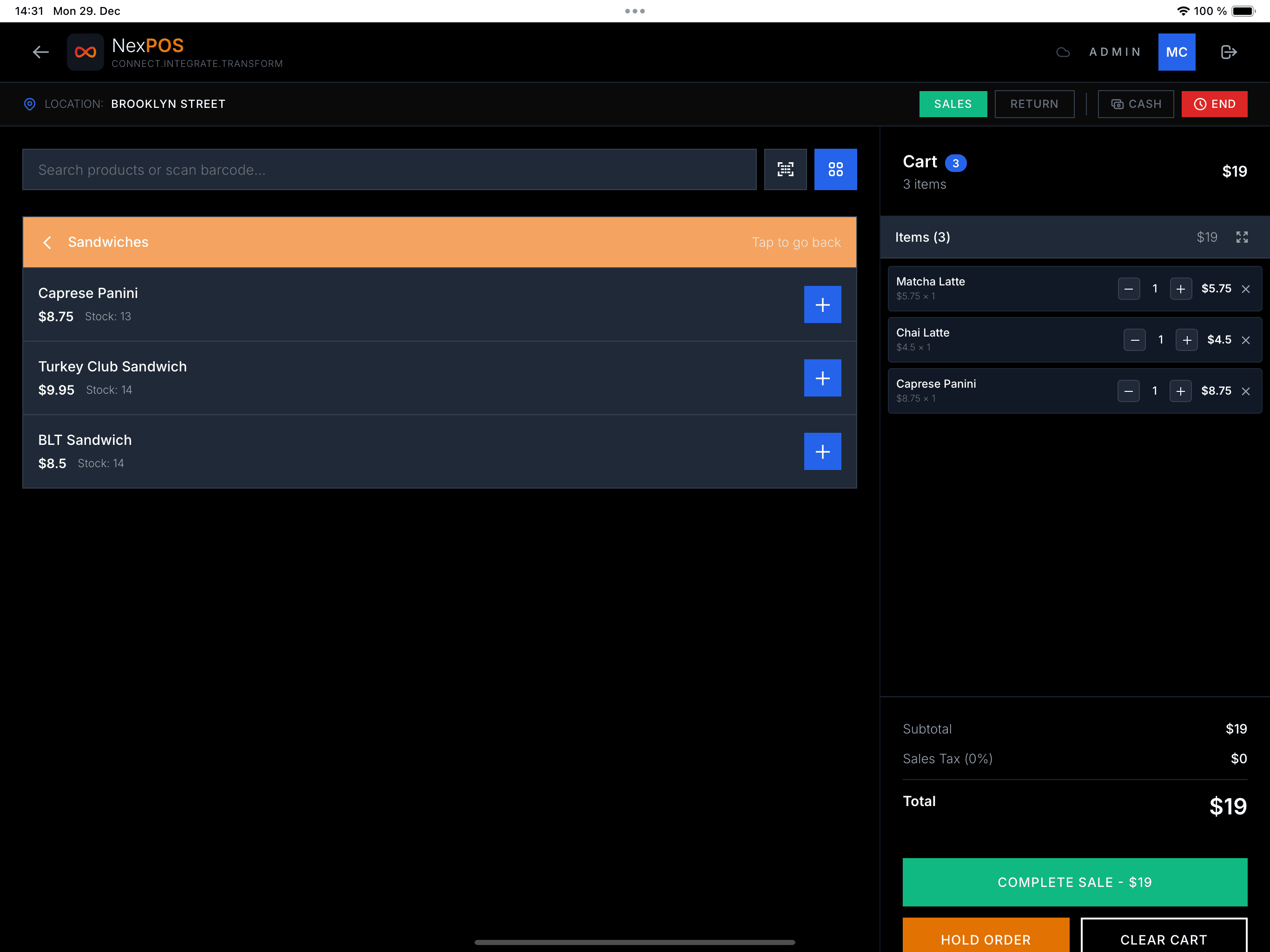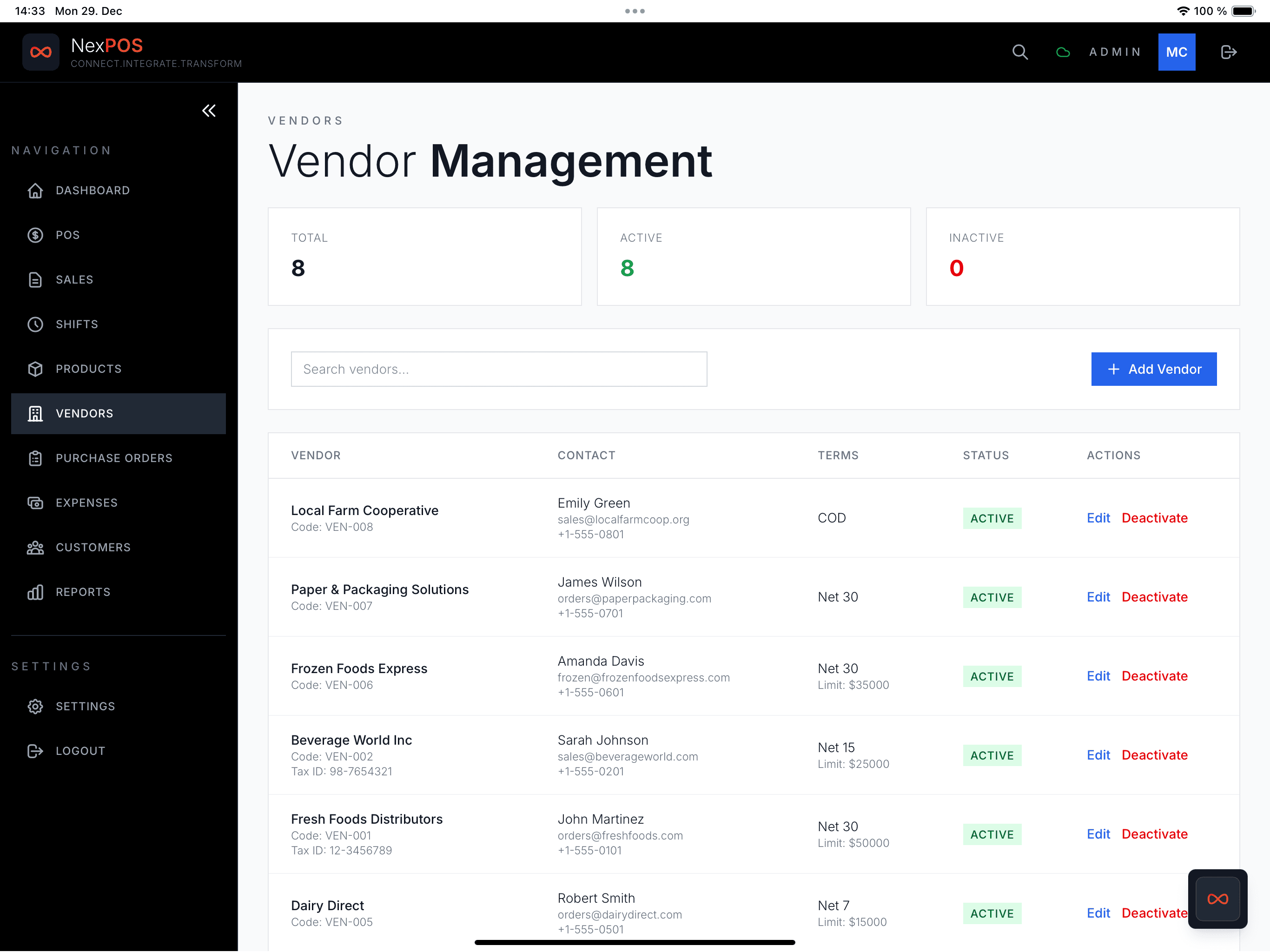
Manual inventory counting is dead. Modern POS systems track your stock in real-time, alert you when items are low, and even automate reordering. Here is how it works — and how to set it up in NexPOS (Essential plan) in 5 minutes.
The problem with manual inventory
- Counting takes hours (or days for large stores)
- Human errors lead to stock discrepancies
- You do not know what is low until it is already out
- No data on which products are actually profitable
- Theft and shrinkage go undetected
Key features to expect
- Real-time stock levels — know exactly how many you have, right now
- Low-stock alerts — get notified when an item drops below your threshold
- Purchase orders — create orders to suppliers directly from the POS
- Stock transfers — move inventory between locations
- Barcode scanning — scan items in/out for accuracy
- Batch tracking — by batch number and expiry date
5-minute setup
Setting up inventory in NexPOS
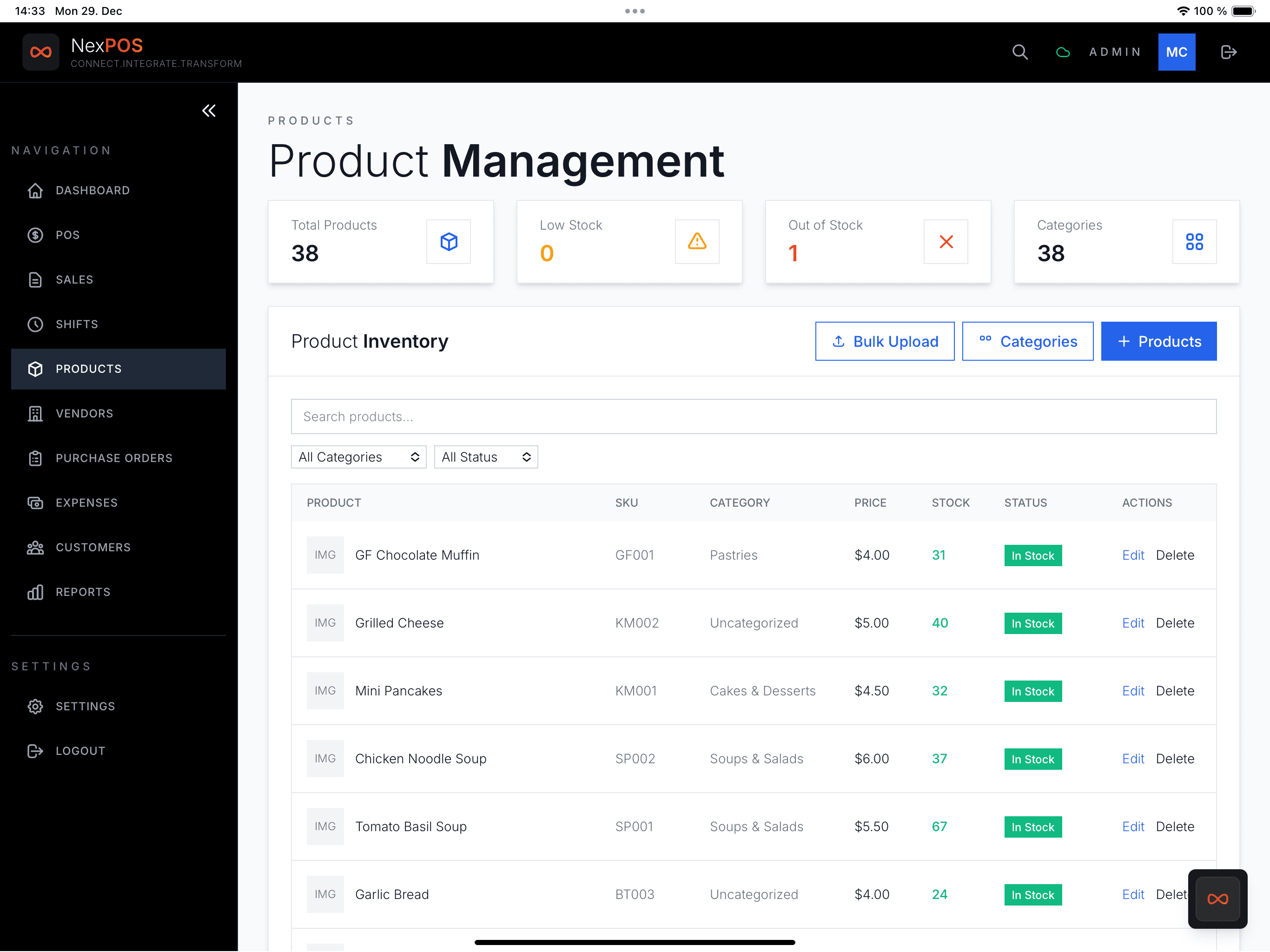
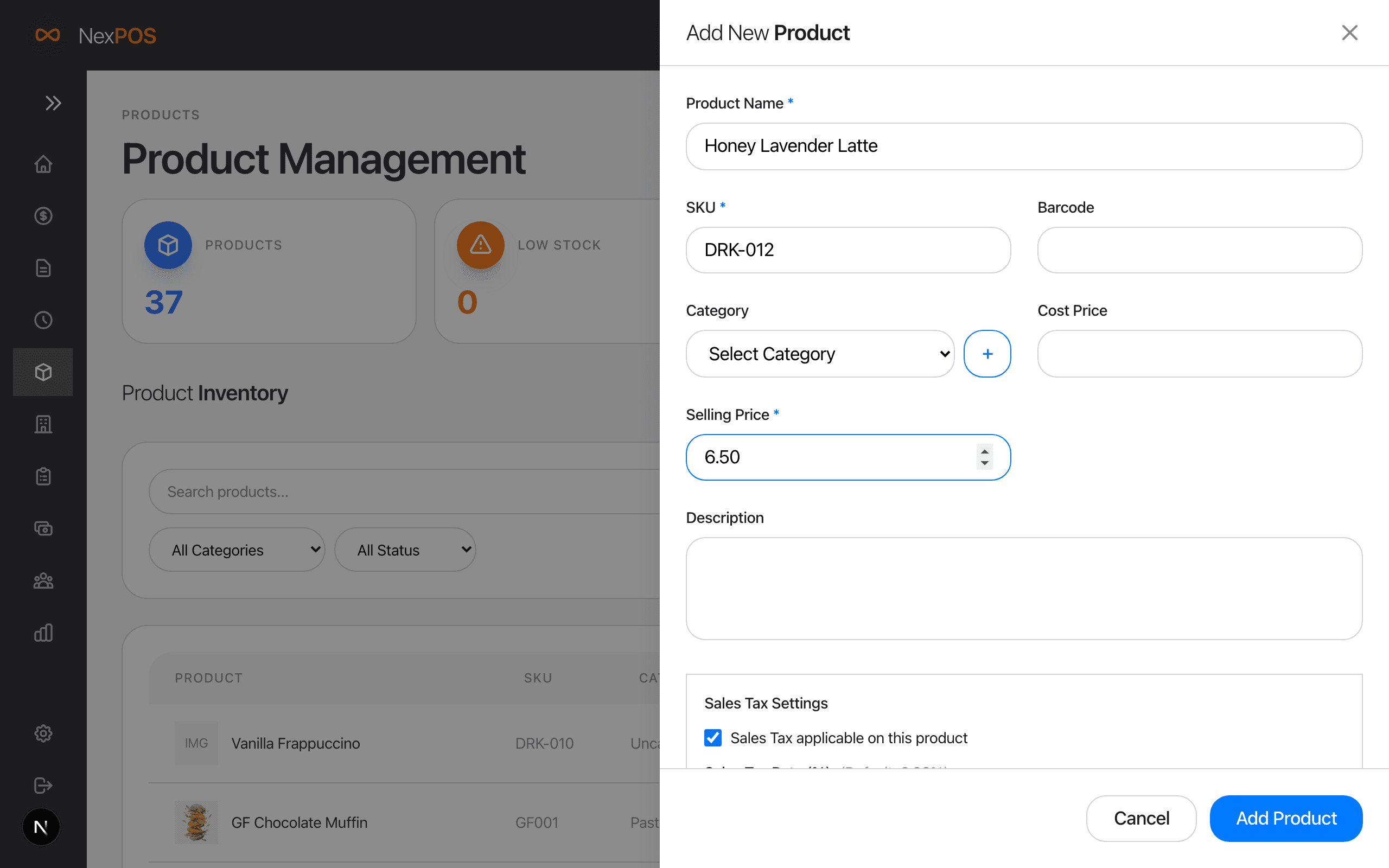
- Add products: enter product name, SKU, price, and initial stock count
- Set categories: organize products into categories for easy browsing
- Set a reorder level: decide the count at which you restock (e.g., 10 units)
- Start selling: every sale automatically updates your stock
- Review reports: see fastest sellers and slow movers
Inventory reports to check weekly
- Stock valuation: total value of your current inventory
- Top sellers: your best-performing products
- Dead stock: items that have not sold in 30+ days
- Stock movement: items received, sold, returned, adjusted
- Shrinkage report: discrepancies between expected and actual stock
Pro tips from the field
- Do a physical count monthly and reconcile with POS data
- Use barcode scanning for accuracy — manual entry causes errors
- Set reorder points for your top 20% of products (they generate 80% of revenue)
- Review dead stock monthly — discount or return items that do not move
Set up inventory in NexPOS
Up to 5,000 products with stock tracking on Essential, $7.99/month. Start on the free plan.
Start Free Now